
jam-audio-toolkit.md
Jam Audio Toolkit
A free Unity-native audio toolkit for authoring, previewing, and triggering reusable sound and music events, with a Dear ImGui companion app.
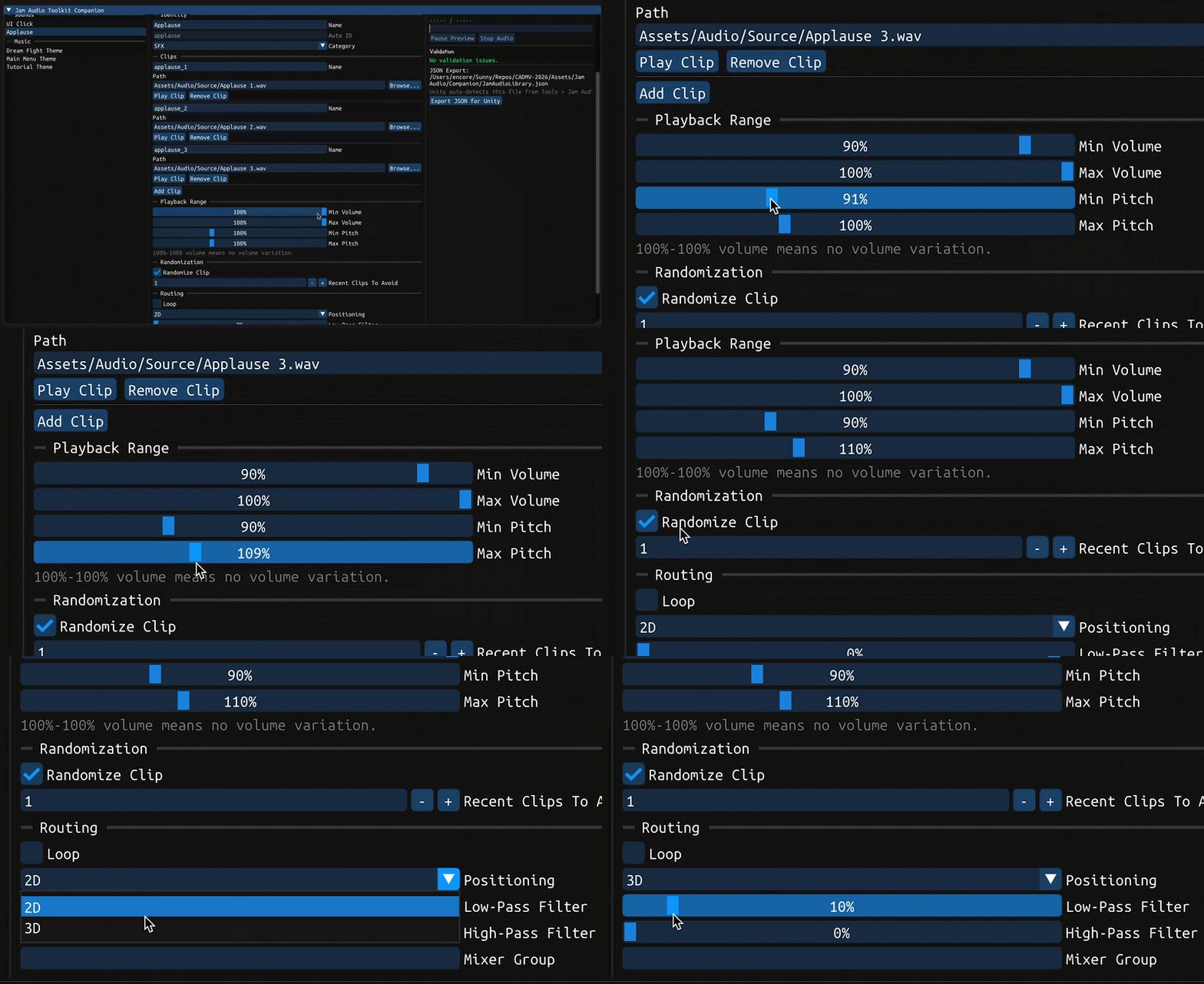

Overview
Jam Audio Toolkit is a free Unity-native audio package for getting game audio running quickly without building a custom audio system first. I built it after spending too many game jam hours repeating the same setup work, like making reusable sound definitions, wiring music fades, adding random pitch and volume variation, keeping repeated clips from feeling mechanical, and giving designers a way to trigger audio without writing one-off scripts for every object.
The toolkit has two sides. Inside Unity, reusable JamSoundEvent and JamMusicEvent ScriptableObjects drive runtime playback, editor inspectors, no-code scene components, and a small one-line programmer API. Outside Unity, the optional Jam Audio Toolkit Companion app provides a desktop authoring workflow for previewing and exporting event data.
Events as Audio Recipes
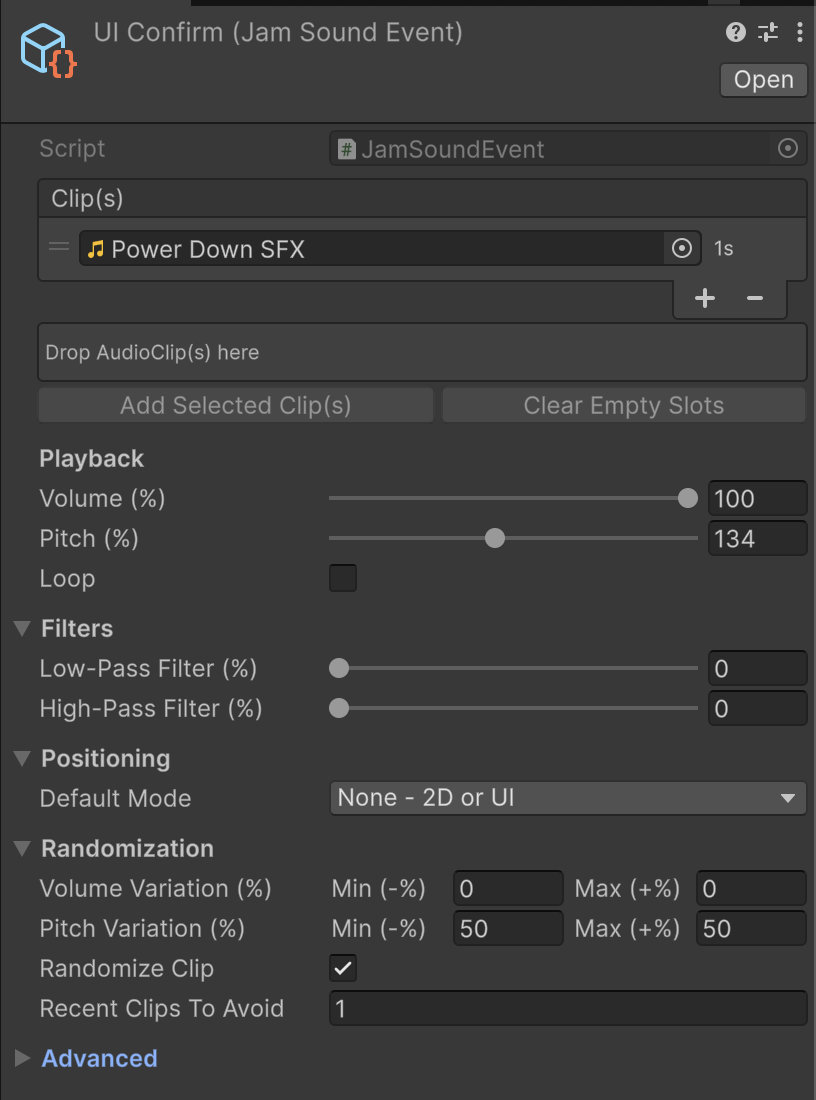
The core design is that audio behavior should live in reusable assets rather than scattered scene objects. A Sound Event stores its clips, volume and pitch behavior, filters, positioning, randomization, repeat avoidance, and mixer routing.
[CreateAssetMenu(menuName = "Jam Audio/Empty Sound Event", fileName = "Empty Sound Event", order = 200)]
public class JamSoundEvent : ScriptableObject
{
    [InspectorName("Clip(s)")]
    public AudioClip[] clips;

    [InspectorName("Volume (%)")]
    [JamPercent(0f, 100f)] public float volume = 1f;

    [InspectorName("Pitch (%)")]
    [JamPercent(0f, 300f)] public float pitch = 1f;

    public bool loop;
    public JamAudioPositionMode positionMode = JamAudioPositionMode.None;
    public bool randomizeClip = true;

    [InspectorName("Recent Clips To Avoid")]
    [Min(0)] public int avoidRepeatingLastClips = 1;
}
The selection logic avoids immediate repeats when possible.
private int GetClipIndex()
{
    if (!randomizeClip || clips.Length == 1)
    {
        return 0;
    }

    int avoidCount = Mathf.Clamp(avoidRepeatingLastClips, 0, clips.Length - 1);
    candidateClipIndexes.Clear();

    for (int i = 0; i < clips.Length; i++)
    {
        if (clips[i] != null && !IsRecentlyPlayed(i, avoidCount))
        {
            candidateClipIndexes.Add(i);
        }
    }

    if (candidateClipIndexes.Count == 0)
    {
        for (int i = 0; i < clips.Length; i++)
        {
            if (clips[i] != null)
            {
                candidateClipIndexes.Add(i);
            }
        }
    }

    return candidateClipIndexes.Count == 0
        ? -1
        : candidateClipIndexes[Random.Range(0, candidateClipIndexes.Count)];
}
Music Events and Transitions
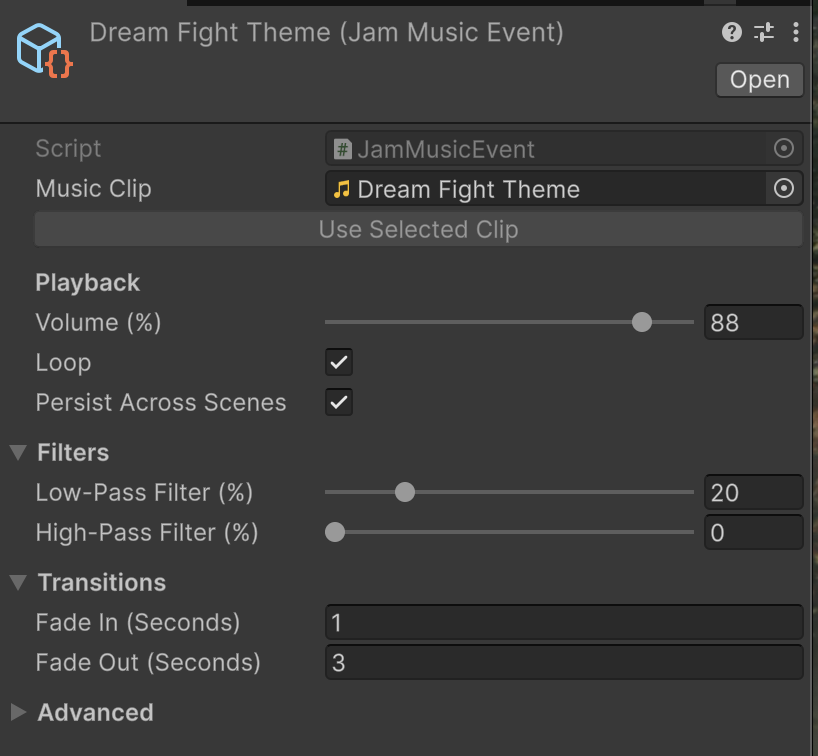
Music Events are separate because music usually has different lifecycle needs from sound effects: crossfades, scene persistence, pause/resume behavior, loop settings, and explicit fade durations.
[CreateAssetMenu(menuName = "Jam Audio/Empty Music Event", fileName = "Empty Music Event", order = 202)]
public class JamMusicEvent : ScriptableObject
{
    public AudioClip musicClip;

    [InspectorName("Volume (%)")]
    [JamPercent(0f, 100f)] public float volume = 1f;

    public bool loop = true;
    public bool persistAcrossScenes = true;

    [InspectorName("Fade In (Seconds)")]
    [Min(0f)] public float fadeInDuration = 1f;

    [InspectorName("Fade Out (Seconds)")]
    [Min(0f)] public float fadeOutDuration = 1f;
}
At runtime, the music manager keeps two AudioSources and swaps them through fades. This makes changing tracks feel like a single request from gameplay code while still supporting crossfade behavior underneath.
private IEnumerator TransitionToMusic(JamMusicEvent musicEvent)
{
    AudioSource outgoingSource = activeSource;
    AudioSource incomingSource = inactiveSource;

    ConfigureSource(incomingSource, musicEvent);
    incomingSource.volume = 0f;
    incomingSource.Play();

    float targetVolume = musicEvent.GetVolume();
    float fadeInDuration = musicEvent.GetFadeInDuration();
    float fadeOutDuration = musicEvent.GetFadeOutDuration();
    float outgoingStartVolume = outgoingSource.isPlaying ? outgoingSource.volume : 0f;
    float transitionDuration = Mathf.Max(fadeInDuration, fadeOutDuration);

    float elapsed = 0f;
    while (elapsed < transitionDuration)
    {
        elapsed += Time.unscaledDeltaTime;

        incomingSource.volume = fadeInDuration <= 0f
            ? targetVolume
            : Mathf.Lerp(0f, targetVolume, Mathf.Clamp01(elapsed / fadeInDuration));

        if (outgoingSource.isPlaying)
        {
            outgoingSource.volume = fadeOutDuration <= 0f
                ? 0f
                : Mathf.Lerp(outgoingStartVolume, 0f, Mathf.Clamp01(elapsed / fadeOutDuration));
        }

        yield return null;
    }
}
One-Line Gameplay API
For programmers, the goal was to keep the common path tiny. Gameplay scripts can hold serialized event references and call JamAudio directly, without needing to find a scene manager or manually configure AudioSources.
using JamAudioToolkit;
using UnityEngine;

public class Pickup : MonoBehaviour
{
    [SerializeField] private JamSoundEvent pickupSound;
    [SerializeField] private JamMusicEvent levelMusic;

    private void Collect()
    {
        JamAudio.Play(pickupSound);
    }

    private void StartLevel()
    {
        JamAudio.PlayMusic(levelMusic);
    }
}
The same API covers object-based and position-based spatial playback.
JamAudio.Play(hitSound, gameObject);
JamAudio.Play(hitSound, transform);
JamAudio.PlayAtPosition(explosionSound, transform.position);
Under the hood, one-shot sounds use a persistent runtime pool so users do not need to add or maintain an audio manager prefab.
private static JamAudioSourcePool GetPool()
{
    JamAudioSourcePool existingPool = FindExistingPool();
    if (existingPool != null)
    {
        return existingPool;
    }

    GameObject poolObject = new GameObject("Jam Audio Runtime");
    Object.DontDestroyOnLoad(poolObject);

    return poolObject.AddComponent<JamAudioSourcePool>();
}
No-Code Scene Helpers
For designers, the package includes JamAudioPlayer and JamMusicPlayer components. These are optional scene helpers for common Unity callbacks: play on start, play on enable, trigger enter, trigger exit, collision enter, or UnityEvent calls.
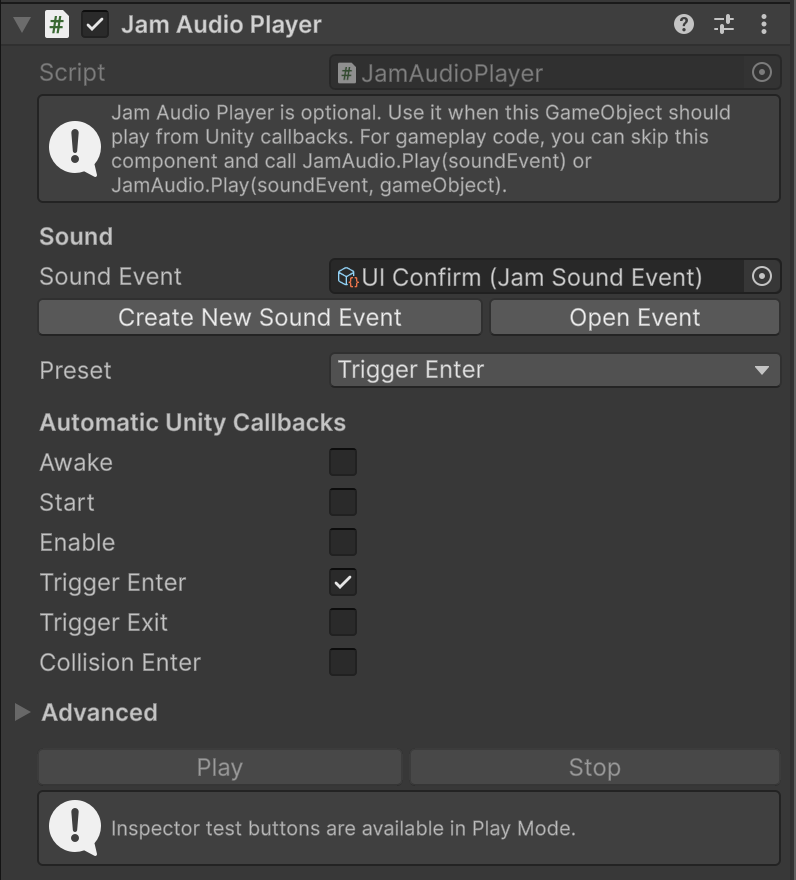
private void OnTriggerEnter(Collider other)
{
    if (playOnTriggerEnter)
    {
        Play();
    }
}

public void PlaySound(JamSoundEvent soundEventToPlay)
{
    Play(soundEventToPlay);
}
Human-Readable Controls
Many Unity audio settings are easy to misread if they are exposed as raw runtime values. I leaned toward inspector labels and custom drawers that say what the user means: Volume (%), Pitch (%), Fade In (Seconds), Low-Pass Filter (%), and Recent Clips To Avoid.
The runtime still stores normalized values where Unity expects them, but the editor surface presents them in friendlier units.
public float GetVolume()
{
    return Mathf.Clamp01(volume + GetRandomOffset(volumeRandomRange));
}

public float GetPitch()
{
    return Mathf.Clamp(pitch + GetRandomOffset(pitchRandomRange), 0f, 3f);
}
Filters use simple 0-100% controls and map them to Unity filter cutoffs logarithmically, which feels more natural than linear Hz changes.
private static void ApplyLowPass(AudioSource source, float amount)
{
    AudioLowPassFilter filter = source.GetComponent<AudioLowPassFilter>();
    amount = Mathf.Clamp01(amount);

    if (amount <= FilterOffThreshold)
    {
        if (filter != null)
        {
            filter.cutoffFrequency = MaxLowPassCutoff;
            filter.enabled = false;
        }

        return;
    }

    if (filter == null)
    {
        filter = source.gameObject.AddComponent<AudioLowPassFilter>();
    }

    filter.enabled = true;
    filter.cutoffFrequency = LogLerp(MaxLowPassCutoff, MinLowPassCutoff, amount);
}
Editor Tooling and Validation
The Unity editor layer does more than show serialized fields. It creates assets from selected clips, checks for missing AudioListeners, warns about empty events, imports companion JSON, and gives non-audio-specialists a clearer inspector workflow.
One example is the Companion import menu item. If the exported JSON is in the default location, Unity finds it automatically; otherwise the user can browse to it.
[MenuItem("Tools/Jam Audio/Import Companion Library", false, 120)]
private static void ImportCompanionLibrary()
{
    string libraryPath = ResolveLibraryPath();
    if (string.IsNullOrEmpty(libraryPath))
    {
        return;
    }

    ImportCompanionLibrary(libraryPath);
}
The importer creates or updates generated assets in a predictable folder structure.
private const string DefaultLibraryAssetPath = "Assets/Jam Audio/Companion/JamAudioLibrary.json";
private const string GeneratedRootFolder = "Assets/Jam Audio/Generated";
private const string GeneratedSoundFolder = GeneratedRootFolder + "/Sound Events";
private const string GeneratedMusicFolder = GeneratedRootFolder + "/Music Events";
Desktop Companion App
Jam Audio Toolkit Companion is a separate C++ desktop authoring tool for quickly building event libraries outside Unity. It uses Dear ImGui, GLFW, OpenGL, miniaudio, and nlohmann/json. The app can preview clips and music, scrub playback, adjust filters live, autosave per Unity project, and export JSON for Unity to import.
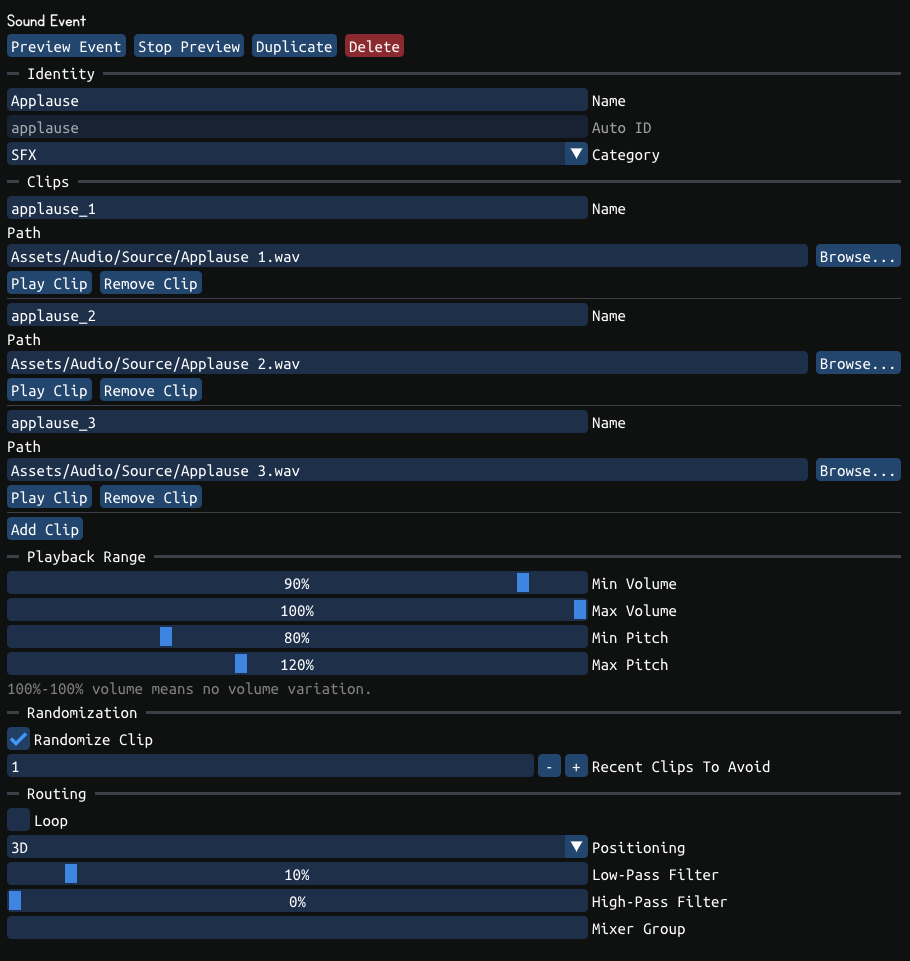
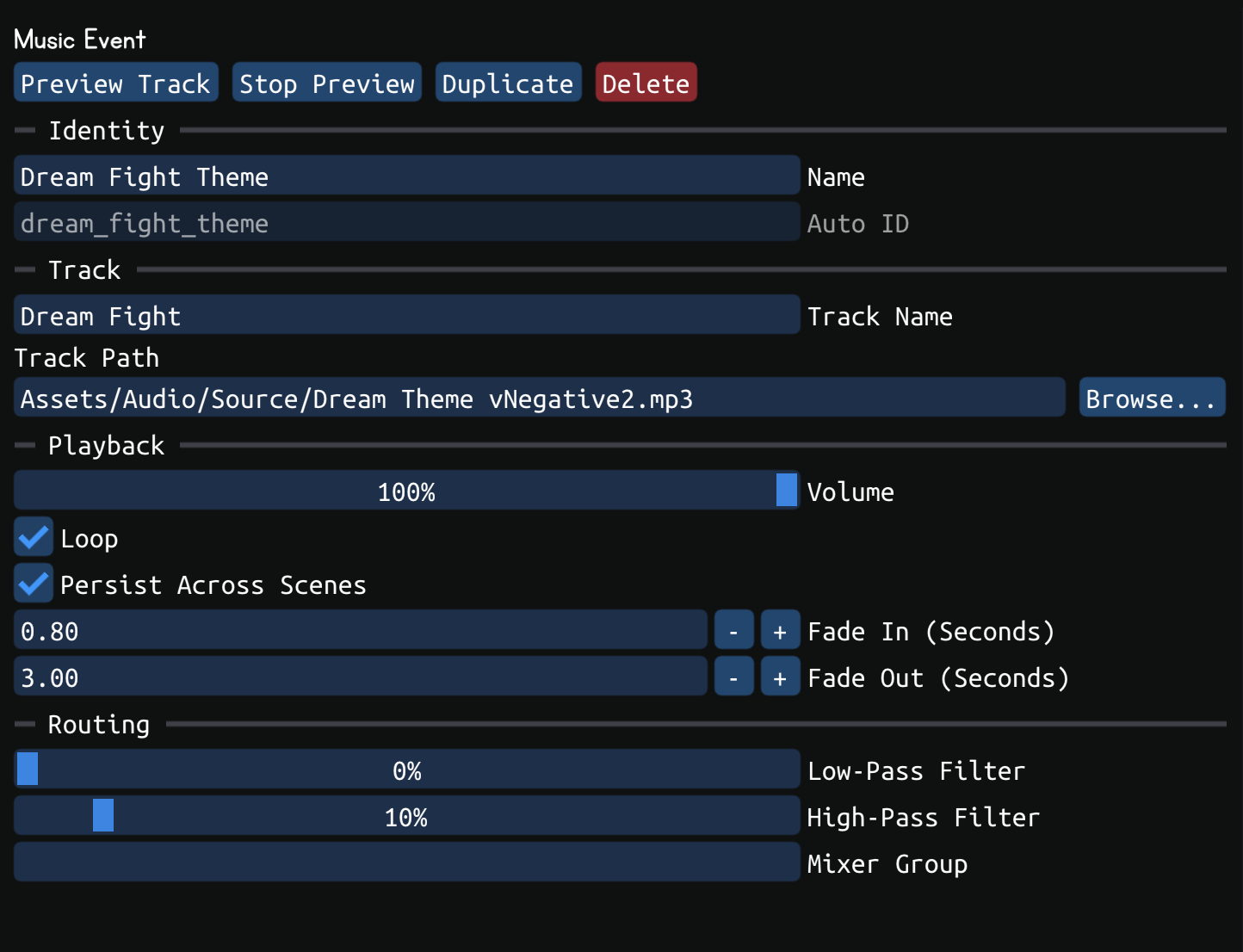
The exported data is simple so the Unity side can regenerate normal ScriptableObject assets rather than depending on the external tool at runtime.
{
  "format": "JamAudioToolkitCompanion",
  "version": 1,
  "soundEvents": [
    {
      "id": "ui_confirm",
      "name": "UI Confirm",
      "volumeMin": 0.9,
      "volumeMax": 1.0,
      "pitchMin": 0.95,
      "pitchMax": 1.05,
      "spatialMode": "2D"
    }
  ],
  "musicEvents": []
}
The preview engine is native C++ and uses miniaudio for file playback and filter previewing.
bool AudioPreviewEngine::PlayPath(
    const std::string& path,
    float volume,
    float pitch,
    bool loop,
    float lowPassPercent,
    float highPassPercent,
    std::string& error);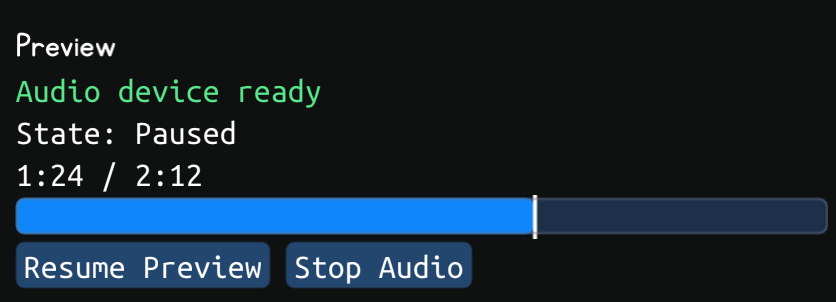
Shipping and Packaging
I prepared the Unity package for free Asset Store release with offline documentation, a permissive 0BSD license for the toolkit code, a credited sample scene, and Asset Store validation cleanup. The Companion app ships separately through GitHub Releases so the Unity package remains usable without native desktop binaries. Asset Store review approval is currently pending since June 2026.